Let me guess—you’ve got some RGB accessories in your PC, but they’re either not syncing, stuck in rainbow mode, or glowing in colors you didn’t even choose. Don’t worry, you’re not the only one who thought computer RGB lights would be plug-and-play, but got lost in the complex software settings, confusing connectors, and frustrating YouTube tutorials that don’t match your motherboard.
I have been there; my first PC build looked like a disco ball. Nothing synced; every RGB accessory had its own mind when it came to displaying colors. I just wanted my PC to glow a warm white when working and red when gaming, but instead, it was trying to signal an alien mothership, which I was afraid of.
Best Selling Computer RGB


Last update on 2026-03-31 / Affiliate links / Images from Amazon Product Advertising API
If you’ve ever felt frustrated trying to control a computer’s RGB lighting, this guide is for you. I’ll show how RGB works, how to control it properly, what mistakes to avoid (I’ve made ’em all), and how to make your setup look fascinating, which you’ve only seen online.
Whether you prefer something minimal, like me, or enjoy a full RGB color blast, it’s all possible as long as you’ve done everything just right. To understand the basics, I’ll break them down without using any technical jargon. So, let’s do this!
What’s Inside!
- 1 – What Is RGB Lighting and How Does It Work in Your PC?
- 2 – Now, where do these lights live?
- 3 – Types of RGB and Connectors
- 4 – Where You Can Add RGB in Your Setup
- 5 – How to Control RGB Lighting (The Smart Way)
- 6 – Common RGB Mistakes and How to Avoid Them
- 7 – Practical RGB Tips to Make It Functional
- 8 – Frequently Asked Questions (FAQs)
- 9 – Conclusion
What Is RGB Lighting and How Does It Work in Your PC?
Alright, let’s start with the basics. As you might know, RGB stands for Red, Green, and Blue. These are the primary colors of light, and when you blend them in different proportions, you’ll get millions of colors—yes, you can create any color on the spectrum.
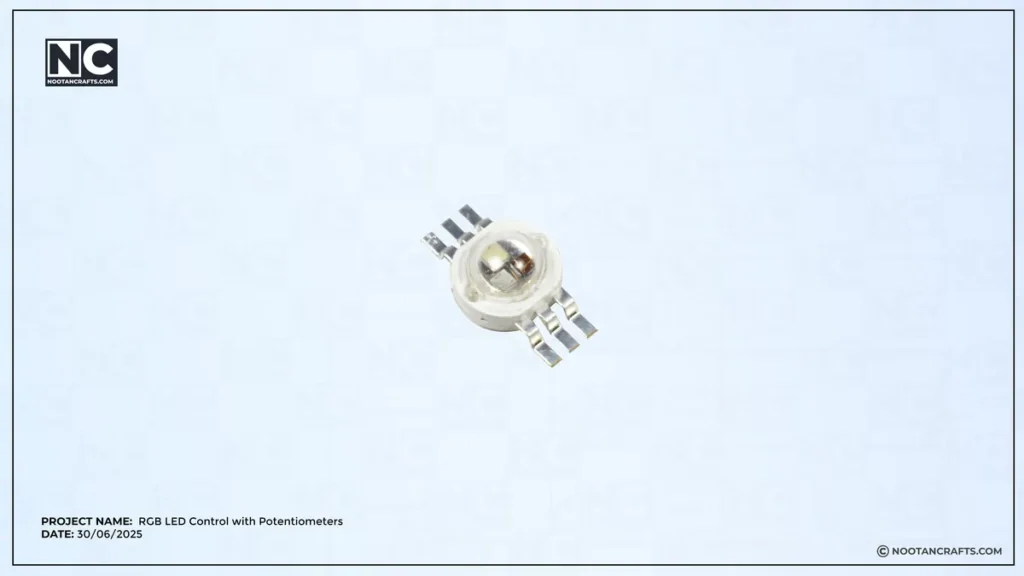

Here is a cool demo for you. I have taken an SMD RGB LED; this single LED chip comprises three different diodes, which are RED, Green, and Blue. It features a separate terminal for each diode, enabling us to power whichever diode we choose.
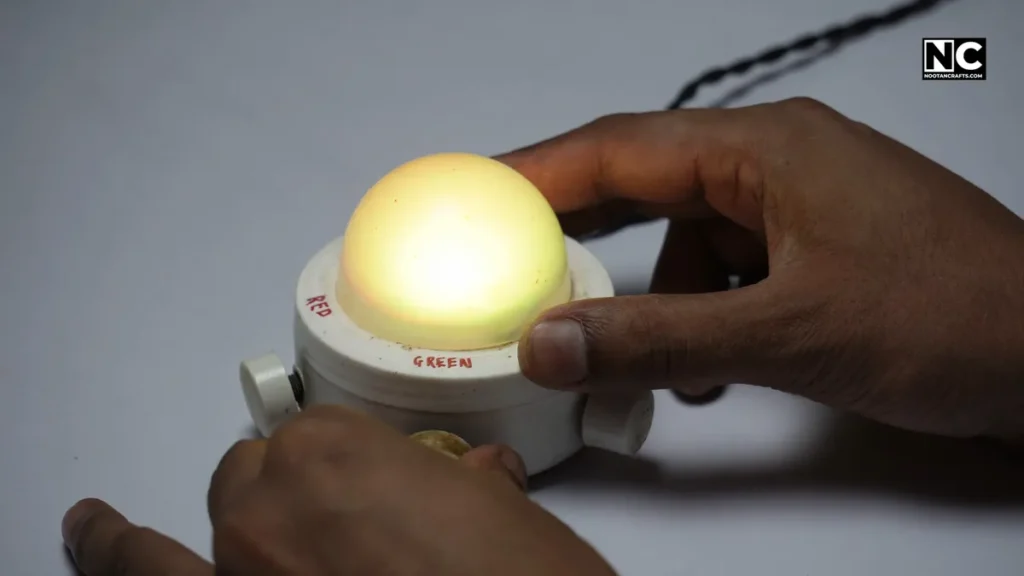
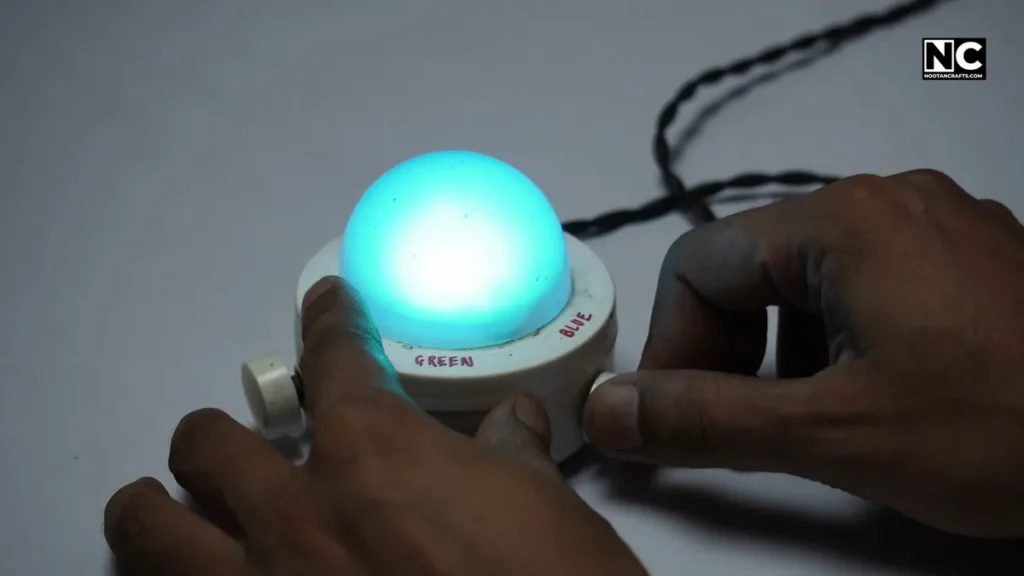
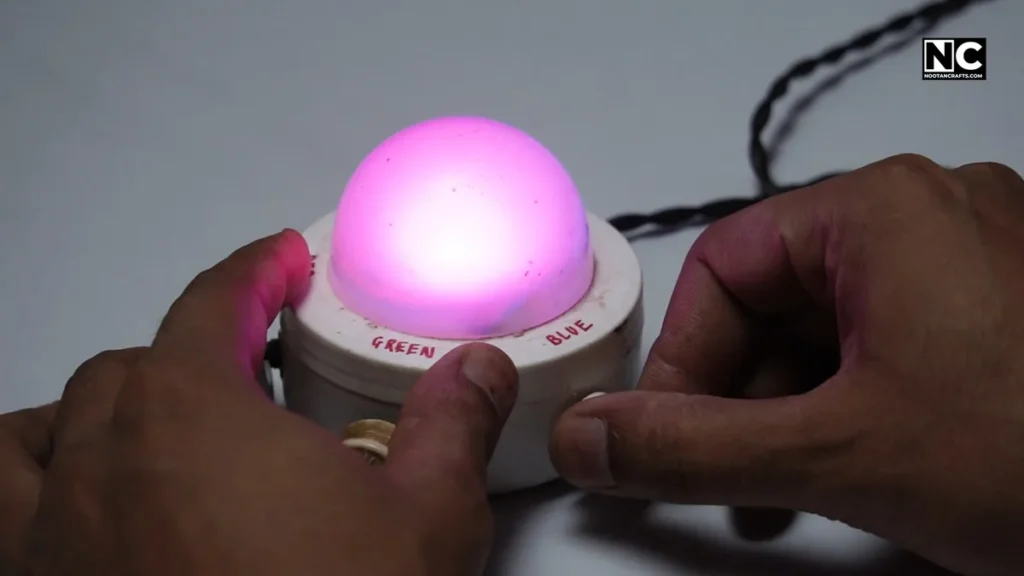
Now, what I did was attach each terminal to a separate potentiometer to control the amount of voltage that can flow through each diode. Here is the reference circuit. Now we can experiment with different voltages across each diode, and despite being three primary colors, this LED chip can produce a wide range of colors, including purple, sky blue, and yellow, as shown. It’s a hands-on way to see how an RGB LED works internally.
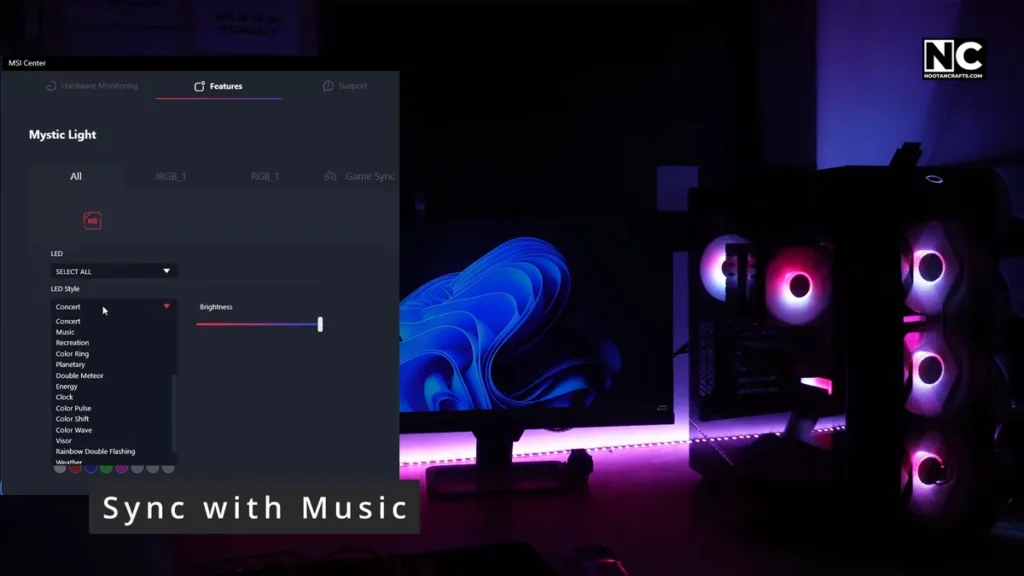
However, in the case of computers, this voltage/brightness is controlled by software and a PWM (Pulse-Width Modulation) chip on the motherboard. It allows us not only to control colors but also to select different patterns and utilize advanced features, such as syncing with music and displaying CPU temperature with color, which is fascinating.
Now, where do these lights live?
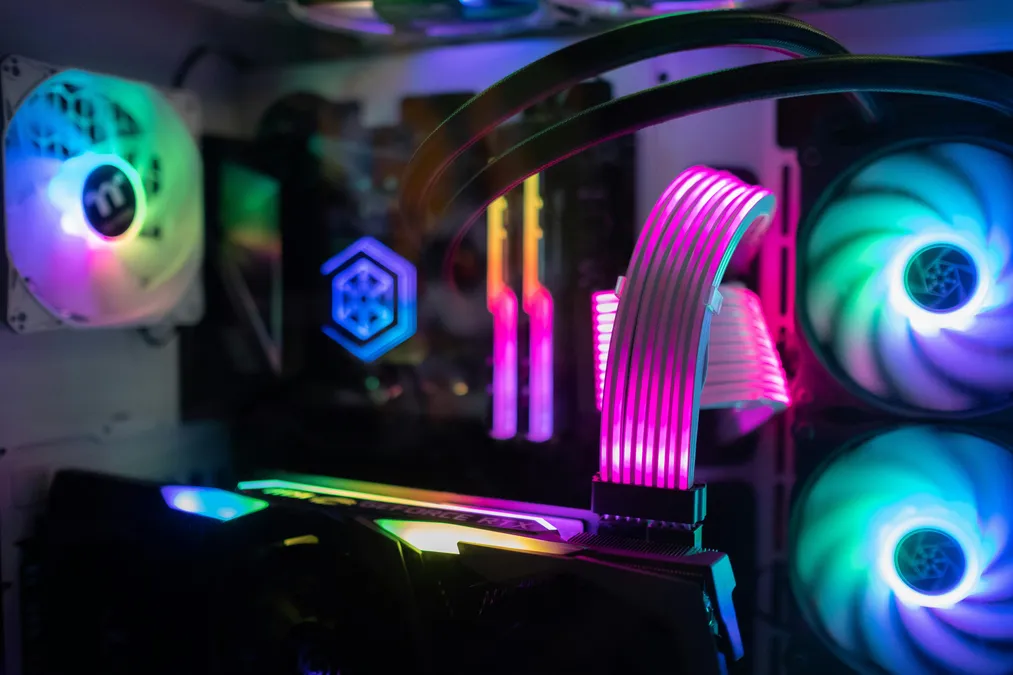
Everywhere. You’ll find RGB in:
- Fans
- RAM sticks
- CPU coolers
- GPU backplate
- SSD heatsinks
- Motherboards
- Heck, even on the back of some monitors.
And they’re all controlled by software like:
- Mystic Light (MSI)
- RGB Fusion (GIGABYTE)
- Aura Sync (ASUS)
- iCUE (Corsair)
These computer apps let you tweak everything from brightness to color and speed, even allowing syncing with music and games. You’ll feel like your PC is alive.
Types of RGB and Connectors

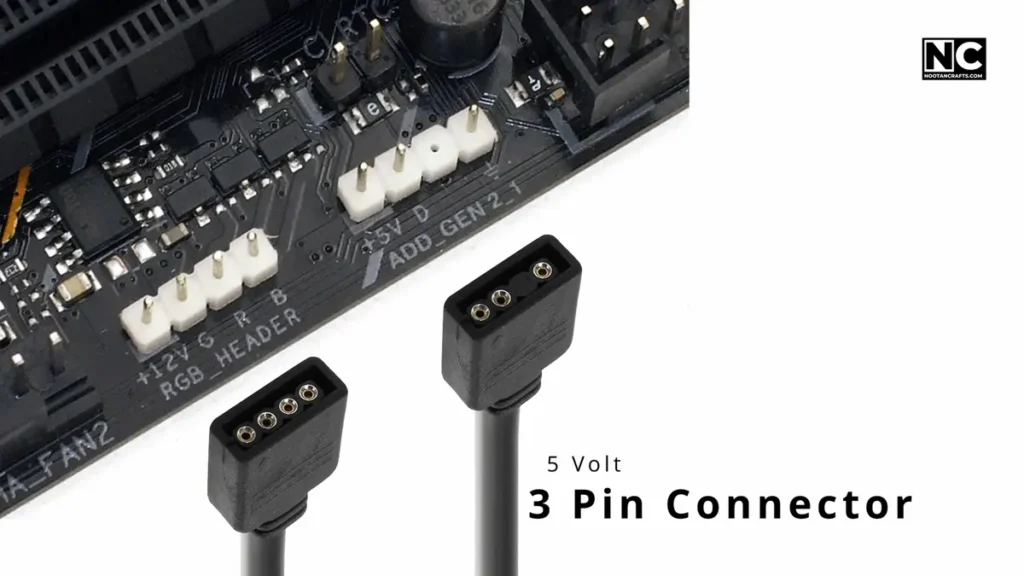
Here is where things get interesting, and most beginners tend to make mistakes. Not all RGB is the same. There are two main types:
RGB (12V, 4-pin) – This is the basic RGB version, which displays the same color across all strips simultaneously.
ARGB (5V, 3-pin) – This is where magic happens. You can control each LED individually, which enables waves, chases, strobe, music sync, and many more cool effects.
The issue is that these are not interchangeable; it means you have to figure out which version of these your motherboard supports. If you put one on top of another, either they won’t work, or you may potentially fry something, which is not recommended.
Here is how to identify RGB vs ARGB header
- 4 pins = RGB – Run on 12V
- 3 pins = ARGB – Run on 5V
Always double-check your motherboard, manual, or header labels for accuracy. Don’t just assume; they look similar and are often placed right next to each other. Sneaky little buggers.
Where You Can Add RGB in Your Setup
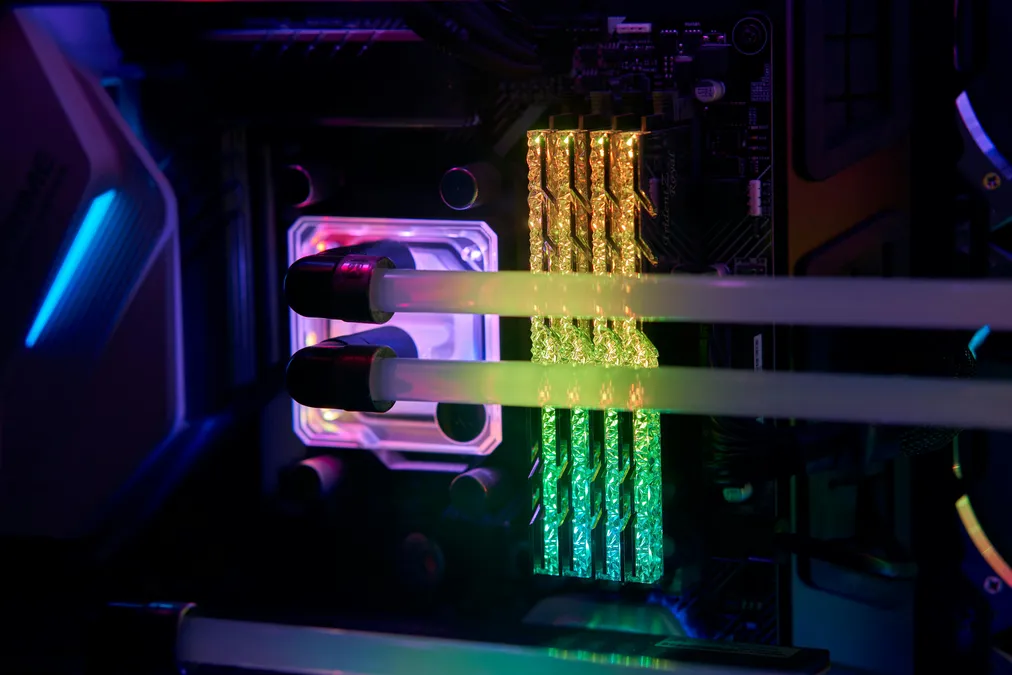
Let’s be honest—RGB can go anywhere these days. But where should it go?
Here are a few spots I would love to recommend:
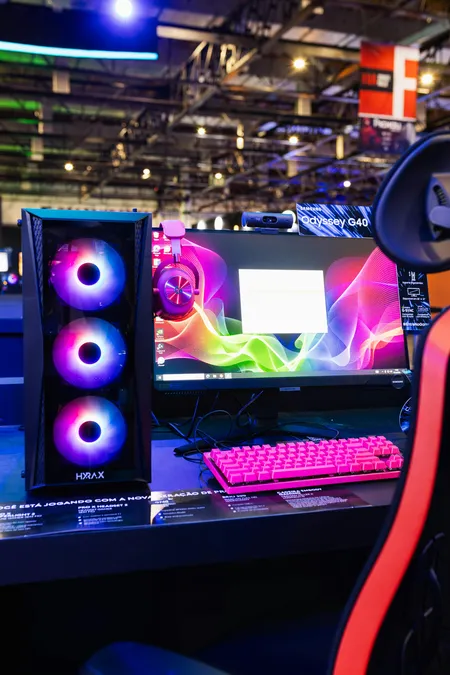
- Case Fans: Add ambient glow, and it looks cool.
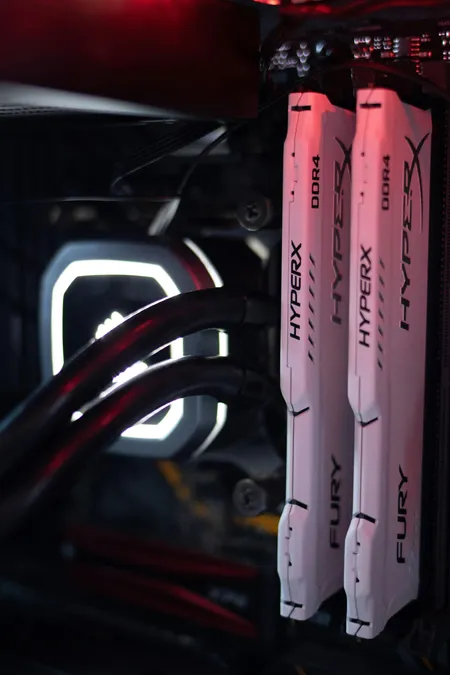
- RAM: Subtle, beautiful. Especially when it breathes in sync.
- GPU Backplates: Some GPUs have built-in RGB, or you can slap on a custom one.
- LED Strips: My personal favorite. Stick them behind your monitor or under your desk for that dreamy underglow.
- Keyboards & Mice: Especially fun for gaming.
- Mousepads: Yep. Even the thing your mouse rides on can glow.
- Monitor the backs, speaker edges, and even under your chair. I once saw RGB under a chair, and honestly? It was awesome.
Pro tip: You can utilize both RGB and ARGB headers. I used the RGB header to drive my monitor’s background LED strip, and the rest of the inside components, such as case fans, the CPU cooler, and the SSD heatsink, were connected to the ARGB header. This way, I can sync my whole setup with uniform colors, effects, and form custom scenes.
How to Control RGB Lighting (The Smart Way)
Alright, it’s time to take our whole lighting under control, because we don’t want it to behave like an orphan child.
Most motherboard these days comes with at least one of RGB or ARGB headers. That’s where you plug in your RGB accessories, but the software does the real magic.
Here is how to do it:
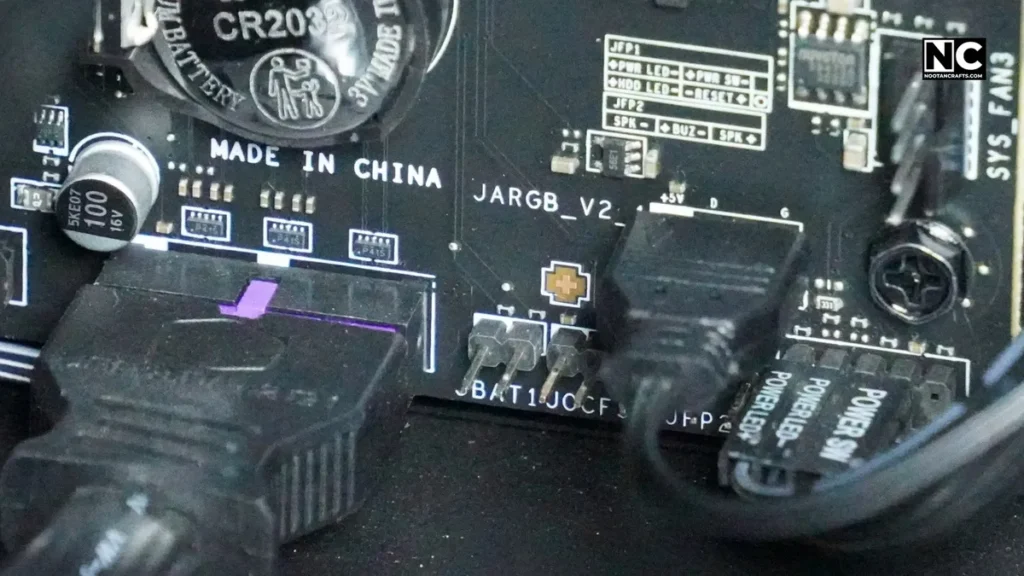
- Connect all RGB or ARGB devices to the correct headers.
- Install the software that matches your motherboard brand.
- ASUS → Aura Sync
- MSI → Mystic Light
- Corsair → iCUE
- Gigabyte → RGB Fusion
- Open the software and get creative.
Now you can:
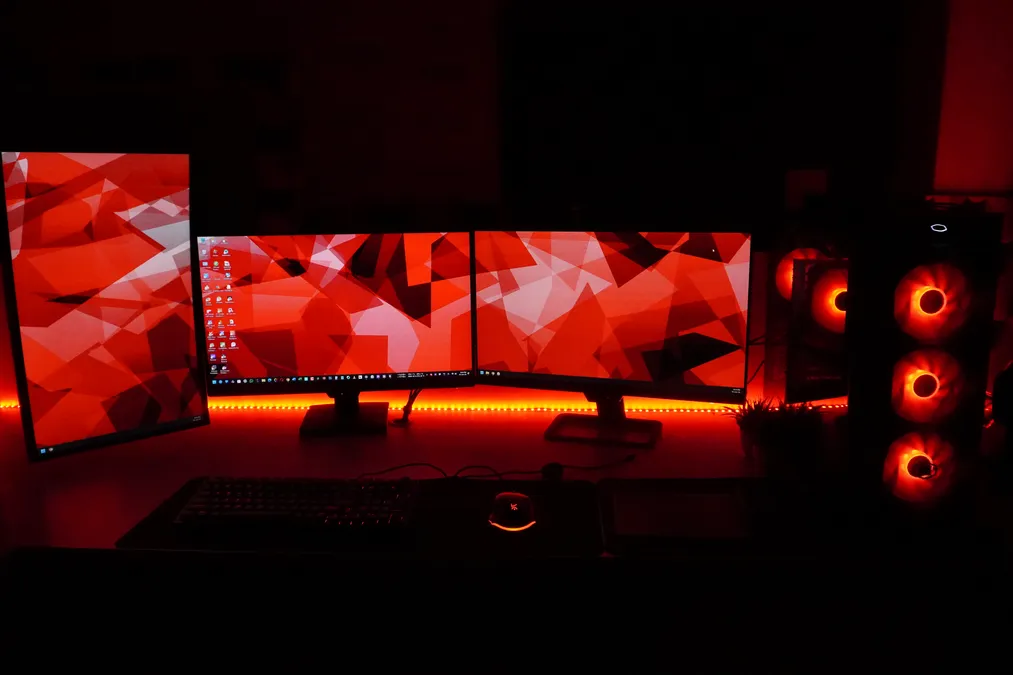
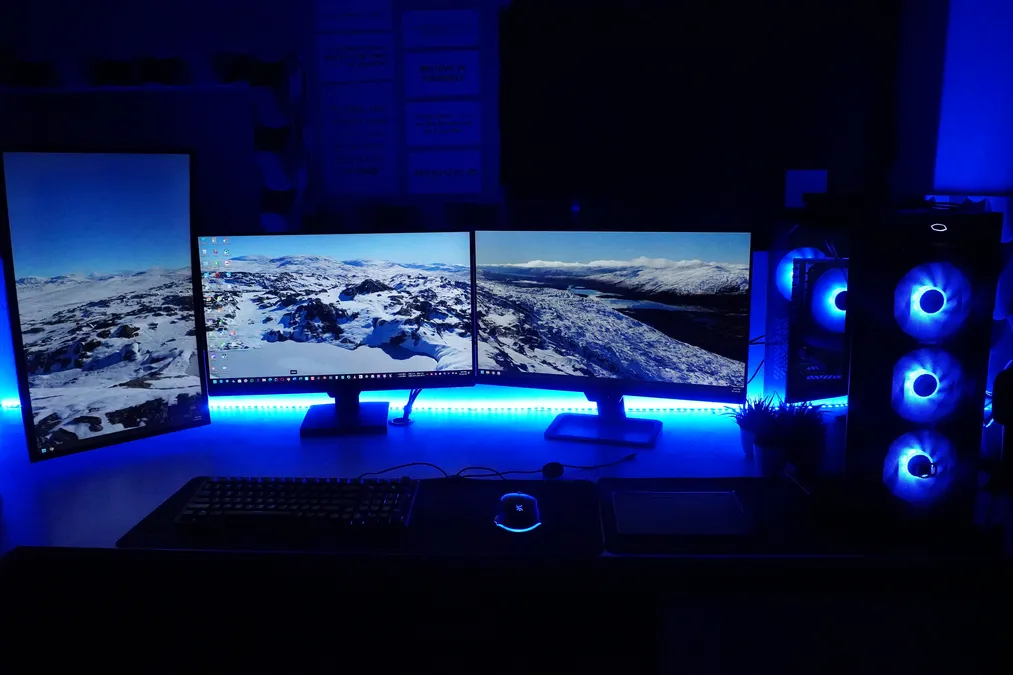
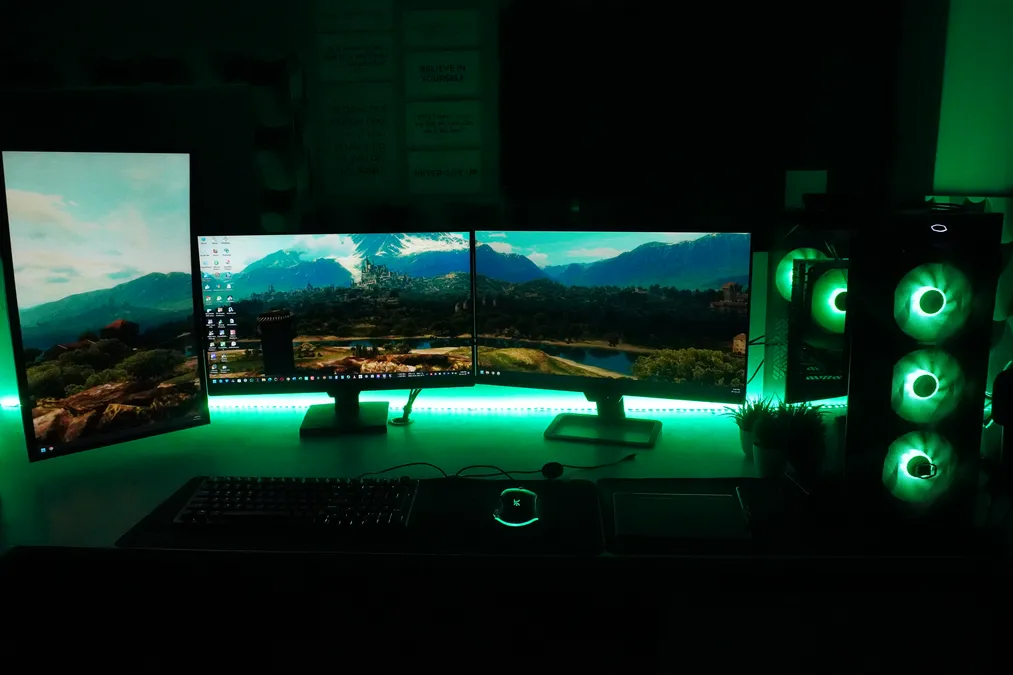
- Set a steady color across your whole setup to match your room vibe.
- Add breathing or pulse effects
- Sync all components together—if you’ve chosen and connected them correctly.
- Control brightness, speed, and transitions.
- Some setup even works with voice control and mobile apps, which provides even more fluidity.
But if your part doesn’t sync? You might end up with one zone red, one blue, and the other in full rainbow chaos. It doesn’t only look messy, but also feels like a total PC building failure.
Common RGB Mistakes and How to Avoid Them

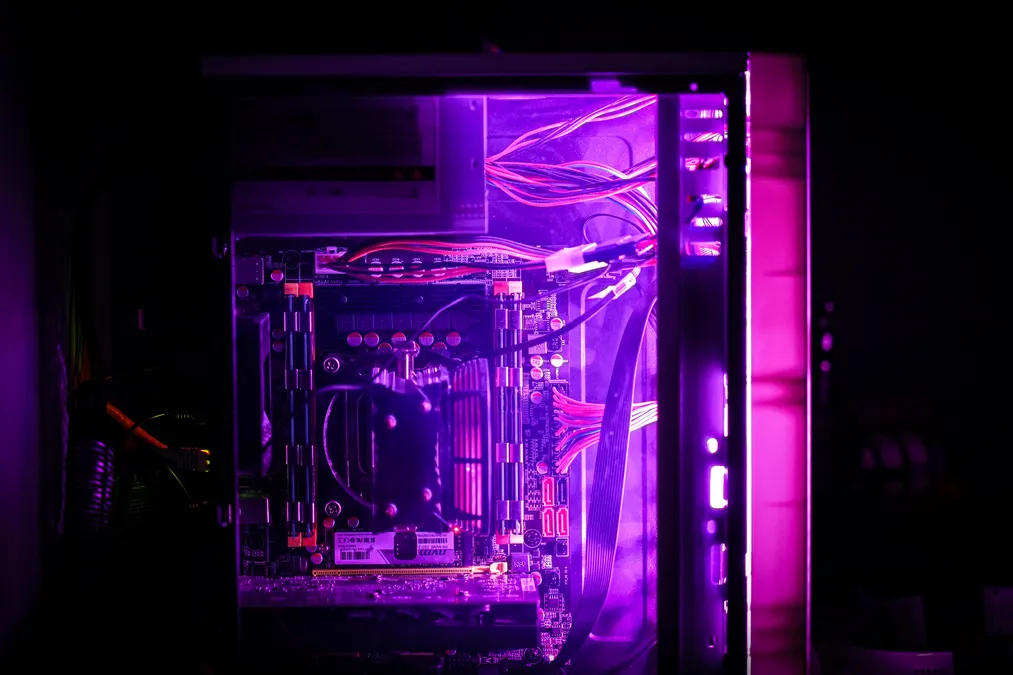
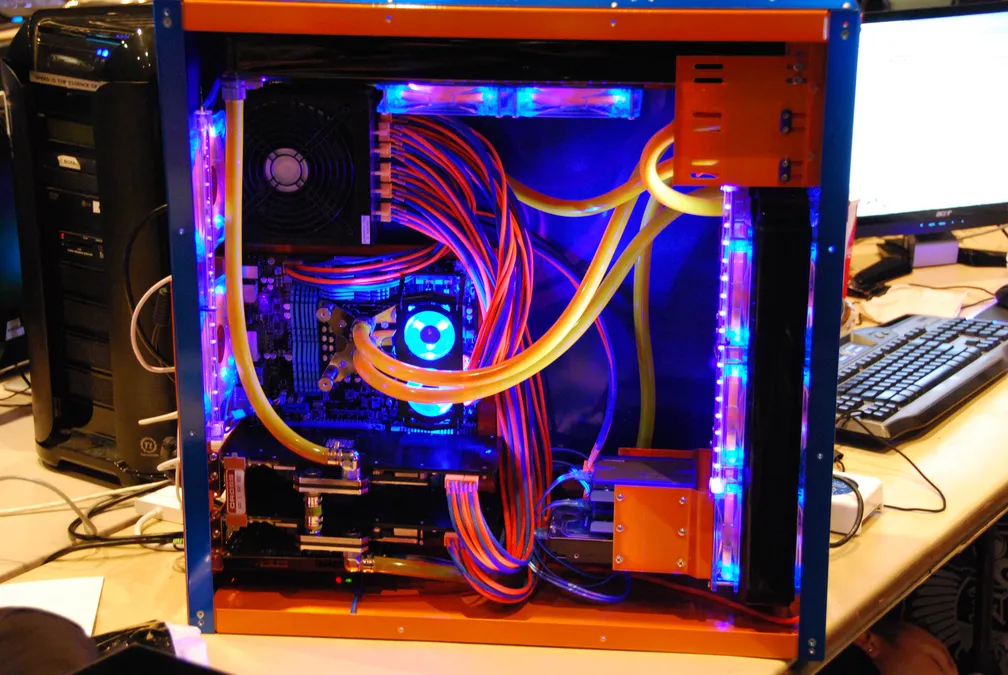
Let’s talk pain because I’ve already made these mistakes, so you don’t need to face them.
- Mixing RGB and ARGB – They don’t play nice. Always check the headers and voltages. If you forcefully do something, you either damage it or fry it.
- Incompatible brands – iCUE can’t control Aura Sync stuff. Please stick to one ecosystem, when possible, it will give you peace of mind.
- Too much glow – Seriously. You’re not throwing a party. Subtle = sexy.
- No cable planning – The wires that power your lights inside or outer pc case need to be routed cleanly. Please don’t turn it into a spiderweb of doom.
- Ignoring airflow – Make sure all fans are installed, currently not just light-wise, but also for airflow.
Bonus tip: Either make or purchase a female-to-female connector to power outside RGBs from your computer. It will provide flexibility in case of regular maintenance.
Practical RGB Tips to Make It Functional
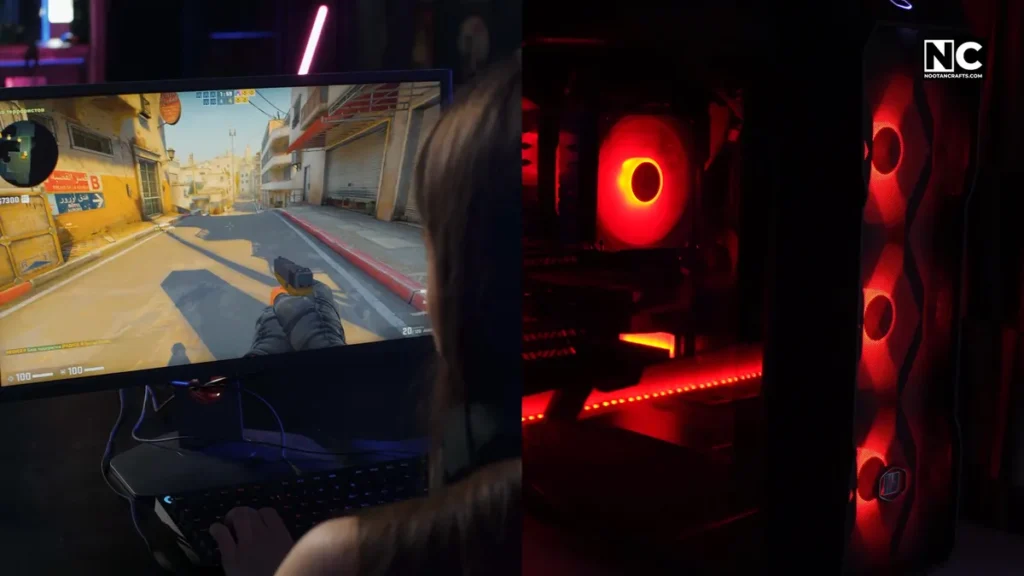

Now we’re talking. It will show you that RGBs can do something useful, not merely a gimmick.
🔥 Thermal Indicator Lighting
I set my CPU cooler to glow green when it’s cool, blue when it’s at medium temperature, and red when it’s running hot. Just one glance, and I know if I’m about to overcook my CPU, pretty handy!
🎵 Music Sync Mode
RGB that responds to music? Freaking awesome. When my desktop glows to the beat of my lo-fi playlist, it’s like my PC has a soul.
🎮 Game Integration
Some software lets you sync RGB to game events—glow red when you’re low on health, flash white on explosions, or blink when something dubious is about to happen. It’s immersive as heck.
🌙 Night Mode
Schedule your PC lights to dim or shift to warm colors after sunset. It will soothe your eyes and make gaming or working comfortable.
🧠 Create Themes
Want a productivity vibe? Go cool/warm white. Gaming time? Switch to aggressive red or full RGB rave. You can set profiles for every mood. No more guesswork.
Frequently Asked Questions (FAQs)
Q1: What’s the difference between RGB and ARGB?
ARGB gives you control over each individual LED, while RGB controls all LEDs as a single group. They also run on different voltages and signals.
Q2: Can I mix RGB and ARGB components?
Nope. Different voltages and headers might fry something. However, you can use both headers effectively to establish a uniform color throughout the entire setup.
Q3: Do I need software to control RGB lights?
Software is best, but some lights come with remotes or physical controllers that allow for independent tweaking.
Q4: Why aren’t my RGB lights syncing?
Check compatibility, header type, and software settings. It’s usually a mismatch issue.
Q5: Is RGB just for looks?
No way. With the right setup, RGB can display temperatures, sync with games, and enhance your productivity or comfort.
Q6: Will RGB increase my electricity bill?
Not much, small RGB lights here and there on system components don’t cost much electricity. However, if you’re using a longer external (let’s say 20 feet) RGB strip around your entire setup, it might cause some digits on your electricity meter to slide.
Conclusion
RGB isn’t just eye candy anymore. When done right, it turns your dull box into something that makes you excited to sit down every day and work, or frag some enemies. It’s a personal expression.
Just don’t overdo it. Plan your layout, select compatible gear, and use lighting that suits you, not the other way around. Whether you want a minimalist underglow or a glowing dragon-themed rig, it’s your canvas.
So go ahead. Make your build yours. Make it glow. Keep crafting. Thanks for reading!